Showing posts with label Vim. Show all posts

Tuesday, February 26, 2013

Preventing Vim from automatically inserting line breaks

I recently had a very frustrating issue with Vim where it was inserting a line break automatically for me whenever a line exceeded the 80 character mark.

After some searching around, I realized that I had textwidth (tw) set to 79 in my _vimrc file. From the documentation:

textwidth.
Maximum width of text that is being inserted. A longer line will be broken after white space to get this width. A zero value disables this.

So as you can see from the documentation, fixing it was very trivial: set tw = 0

Friday, June 25, 2010

Finding and replacing whole words with regular expressions in Vim

Let's say we have the following text in Vim:

john
joseph
joe
jo
joan

We now want to replace the name jo with mo.

Our first try would be something like this: :%s/jo/mo. But this changes our text to the following:

mohn
moseph
moe
mo
moan

And this is not what we want. We only want the name jo to be replaced. Fortunately, Vim offers a special regular expression syntax that allows us to map whole words only: \< and \>

\< matches the beginning of a word and \> matches the end of a word. The end or beginning of a word is determined either by a punctuation mark or by a space.

Now we can use the following regex to change the name jo to mo: :%s/\<jo\>/mo

john
joseph
joe
mo
joan

Further examples:
\<jomatches only the words that begin with jo; such as jo, joseph and john; but not mojos.
our\>matches only the words that end with our; such as your and tour; but not devouring.

Wednesday, June 23, 2010

Vim's black hole register

This article will demonstrate how to change text in Vim 'without using a register'.


Whenever you yank (y), change (c) or delete (d) something in Vim, it goes into a register. These registers can be used to keep track of your changes.

If you change or delete a line without using a named register, Vim still saves those changes in registers that are referenced by numbers 1 through 9. By line, I mean changes that are done to a whole line such as dd and cc. Each time you change or delete a line, the contents of these 1-9 registers will shift down and you will lose the contents of the last register whenever it goes beyond the last position of this stack. You will still have access to the changes via the undo (u) command, but you won't be able to access them via these registers.

The last modification is also saved in a default register called ". The default register also holds any yanks, changes or deletes that you do to parts of a line, such as words.

To view the contents of all your registers, use the :register command.

Now, to put (p) text in Vim, you can specify from which register you want the contents to be retrieved from. For example, with "ap, you will put the contents of register a in the text. But, if you do not specify a register (by using just p), Vim will take the contents of the default " register.

It can therefore get a bit cumbersome to delete some text with d (by not specifying a named register) that you want to place somewhere else and have to delete other text in between before placing your text where you want. This is because, as stated earlier, once you make other modifications (y, c, d) in between, these changes will go into the default " register and you will lose your original contents.

To prevent this, you can use the so called black hole register:


When writing to this register, nothing happens. This can be used to delete text without affecting the normal registers. When reading from this register, nothing is returned. {not in Vi}


Whenever you yank, change or delete into this register, the modifications do not go into the " register. In fact, they do not go into any register! This means that you can delete some text using d that you plan to move somewhere else (without specifying a named register), delete some other text in between into this black hole register, and then put the contents of your original deletion where you want it via p (again, without specifying a named register).

This black hole register is referenced by _

As an example, if you delete with "_d, the changes will not go into any register and you can only get them back via undos (u). But now, you will still have access to the contents of your default " register.

Finally, it's best to map the "_ key sequence so that it's easier to type in. In the following example, I am mapping it via the key:

:map <leader>b "_

Now you can delete a word into the black box register with \bw (assuming your leader key is set to the default \), delete 5 words with \b5dw or change 3 words \bc3w.


Update

As Ben Orenstein correctly pointed out in the comments, Vim also saves your last yank in the 0 register. This means that you can yank text (without using a named register), delete some text in between and then paste the previously yanked text with "0p. Thanks for this excellent tip Ben!


Useful vim commands and snippets

In this post, I will list down some useful vim snippets that I've collected throughout my experience with this beast of an application. I will keep updating this list whenever I encounter something new.

All the below shortcuts are executed in COMMAND mode, unless otherwise specified.


:! ...
Executes an external command.
Example:
:!gcc % Invokes gcc on the current file


:<range>!...
Pipes the text that's in the specified range to an external command and reads back the result into the file
Examples:
:1,6!sort
:%!sort Here, the % means 1, $ (from line 1 till the end of file)
:%!xxd Turns the file into a hex dump, with the linux xxd command
:!xxd -r To reverse back to the text
:%!nl -ba or :%!cat -n Number all lines


:r <filename>

Reads an external file and inserts it at the current cursor position
Example:
:r main.c Inserts the contents of main.c in the next line


:r!
Reads in the results of an external command and inserts it in the next line
Example:
:r! ls -l


:.!

Like :r! but inserts the text in the current line
Example:
:.! ls -l


%
Goes to the matching bracket under the cursor
Example:


<action>i...
works on the enclosing text, specificied by the encloser
Examples:
ci{ Change the text between the { }


vi' Visually select the text between '
vi" Visually select the text between "
diw Delete the current word


CTRL + v
Block-select mode


CTRL + a
Increments the number under the cursor


CTRL + x
Decrements the number under the cursor


'.
Jumps back to the last edited line


`.
Jumps back to the last edited word


gi
Like `. but goes into INSERT mode


ga
Displays the ASCII, hex and octal value of the character under the cursor


~
Changes the case of the letter under the cursor


CTRL + r (in INSERT mode)
Examples:
"Unnamed register, containing the text of the last delete or yank
%Current filename
#Alternate file name
*Clipboard contents (X11: primary selection)
+Clipboard contents
/Last search pattern
:Last command-line
.Last inserted text
-Last small (less than a line) delete
=8*5Insert 40 into text (mini-calculator)


(I have written a whole post about CTRL + r)


:Explorer
Opens a built in file explorer

Although vim's inbuilt file explorer suffices, I suggest you use NERDTree for a better file explorer.


:earlier 20m
Reverts the document back to how it was 20 minutes ago


:later 15m
The reversal of :earlier


zz
Scrolls the screen to make the current line in the middle of the page


:changes
View the changelist


g; and g,
Move backwards and forwards through the changelist


ge
Moves the the previous word end


:perldo and :rubydo

Execute a perl or a ruby one liner on a range of text.  If you do not specify a range, the command will execute on all the lines.  In the one liner, $_ refers to the text of the line


Examples:
:perldo $_ = join ' ', reverse split Reverse the words of all the lines
:2,4 rubydo $_ += ";" Inserts a semicolon at the end of lines 2 to 4 (This example can also be achieved with :2,4 s/$/; )


q:
View command history


gf
Tries to identify the word under the cursor as a file name and open it


CTRL + z
Switch back to the shell.  Type in fg to return back to vim


:sh
Go to sub shell.  CTRL + d or type exit to go back to vim


ggg?G
ROT13 the current file


*
Finds the next occurrence of the word under the cursor


#
Finds the previous occurrence of the word under the cursor


:set cul
Highlights the line containing the cursor


:set nu
Turns on line numbers in the left margins


:set autochdir
Set the working directory to the location of the current file


:set so=3
Scrolls the text so that (when possible) there are always at least three lines visible above the cursor, and three lines visible below the cursor
Examples:
:set so=999 Keeps the cursor in the middle line, whenever possible


:set showcmd
Shows the command keystrokes as they are being inputted, at the bottom right of the screen


gg=G
Corrects indentation for the whole file


guu
Lowercase the entire line


gUU
Uppercase the entire line


xp
Transpose two characters (switch their positions).  This is a simple cut (x) and paste (p) after the cursor operation.


CTRL + v (INSERT mode)

Enter a character from its hexadecimal value


CTRL + y (INSERT mode)

Inserts the character above at the current cursor position


CTRL + w (INSERT mode)

Deletes the previous word


gk
Go up one visible line


gj
Go down one visible line


:tab help ...
Open help in a new page
Examples:
:tab help shiftwidth Opens the help for shiftwidth in a new tab


:qa
Close all windows and tabs (:qa! to force it)

Monday, June 21, 2010

Extending vim with the Expression Register

If you press <C-r> (CTRL + r) in vim while in INSERT mode, you will have access to the expression register. This register allows you to execute some commands while in INSERT mode.

For example, if you press <C-r> and then " you will insert the text of the last delete (or yank) from the unnamed register. The following is a list of what you can insert:

"Unnamed register, containing the text of the last delete or yank
%Current filename
#Alternate file name
*Clipboard contents (X11: primary selection)
+Clipboard contents
/Last search pattern
:Last command-line
.Last inserted text
-Last small (less than a line) delete
=Explanation ahead

To view the contents of each of your registers, use :registers

The = sign

The = lets us to access vimscript functions. This means that by using a function like system, we are able to call external utilities and redirecting their output back to our text.

As an example, let's say we want a way to insert a random number between 0 and 100 in vim. The following is a very simple ruby script that generates this random number and prints it on stdout:

#!/usr/bin/ruby

print rand(100)

For the sake of this example, let's say this script is saved at ~/ruby/random.rb

We can now press <C-r> (while in INSERT mode) and when pressing =, we get a mini terminal at the bottom where we can type in the vimscript. Using the system function, we type the following to execute the ruby script, press Enter, and get its output:

=system('~/ruby/random.rb')

A random number should then be inserted in your text.

Now we are going to map a key combination that will let us access the script easier:

:imap <C-j>d <C-r>=system('~/ruby/random.rb')<CR>

imap allows you to map a key in INSERT mode and <CR> means Carriage Return, which basically simulates an 'Enter' press.

Now when we press <C-j>d (CTRL + j, d), we should get a random number inserted in our text from the ruby script.

The mini calculator

As a side note, with <C-r>= you also have a mini calculator in your hands! Try something like this:

<C-r>=5 * 3 + 4<CR>

Try it, and you'll see 19 in your text.

Thursday, April 8, 2010

Removing the vim error: viminfo: Illegal starting char in line

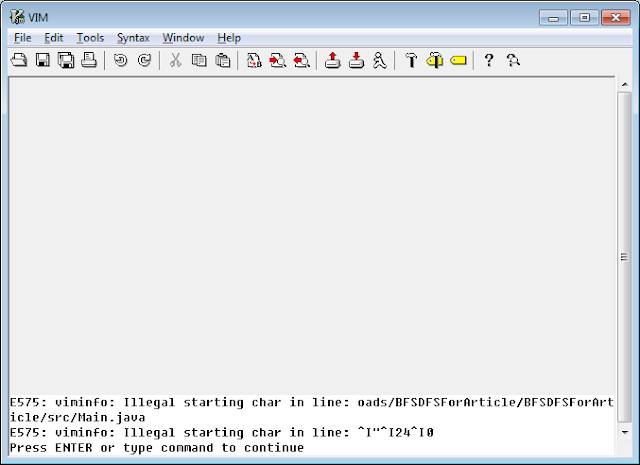
Last time, I tried opening my gVim and got the following error:


E575: viminfo: Illegal starting char in line: oads/BFSDFSForArticle/BFSDFSForArticle/src/Main.java
E575: viminfo: Illegal starting char in line: ^I"^I24^I0

After some digging around, I realized that this problem is because for some apparent reason, my viminfo file got corrupted.

This viminfo file is mostly used for temporary working data and does not contain any settings, and thus it is safe to delete it. So that's what I intended to do, but finding it was another story.

After I searched my vim installation directory without being able to find this file, I decided to completely uninstall vim and install it from scratch again. But, much to my surprise, the error was still there when I ran vim after the new installation! Which obviously means that the viminfo file was not located in my vim installation directory.

I then ran gVim with the Verbose option, -V. This option instructs vim to tell you everything that its doing, and it is controlled by levels. You can specify the level via -Vn, where n is the level of data that you want to see. By default, if you run -V, the level is 10 (-V10).

For the purposes of actually locating the viminfo file, level 1 is sufficient:

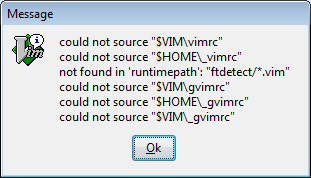
C:\Program Files\Vim\vim72>gvim -V1

This prompted the following message box:


This gave me the information I was looking for. As you can see, the folders I am looking for are $HOME and $VIM. These are environment variables, and to actually see what paths they are mapped to, open vim and run the following commands:

:echo $HOME
:echo $VIM

Those two commands will show you the paths that the variables are mapped to. In my case, $HOME pointed to C:\Users\Andreas and $VIM pointed to C:\Program Files\Vim.

Now since I had uninstalled vim earlier on (thus completely removing C:\Program Files\Vim), the folder I checked for the file was C:\Users\Andreas.

I navigated to the folder and voila, there was the file I was searching for: _viminfo. I deleted that file, and the error was gone.

Saturday, November 14, 2009

Vim is like your average text editor...on steroids!

So recently I started using vim after a friend suggested it, and man I have to say, it's like your average text-editor on steroids!

vi was actually written in the 70s (1976), but I just started using recently.  Actually, what I started  I had read a lot about it on Stackoverflow, and last time my friend told me he uses vi when working with C (I, instead, had been using the Code::Blocks IDE); and so I decided to give vim (which is actually an extended version of the vi editor) a go during a *boring* Entrepreneurship lesson at school...and I was impressed and got so immersed in it that I even forgot I was still in a lesson at school.

What really impressed me with vim is the amount of work I can do with fewer keystrokes as possible.

Here is a list of couple of basic commands (from this answer over at stackoverflow) :


y(ank) - copy
d(elete) - delete
c(hange) - change
p(aste) - put from buffer after cursor
o(pen) - start a new line
i(nsert) - insert before current character
a(fter) - insert after current character
w(ord) - moves to beginning of next word
b(ack) - moves to beginning of current word or prior word
e(end) - moves to end of current word or next word
f(ind) - moves to a character on the current line
movement keys you just need to learn: h,j,k,l

^ - beginning of text on a line
$ - end of text on a line
0 - first position on line

most commands can be prefaced with numeric modifiers.
2w - means move 2 words
5h - means move 5 charcters to the left
3k - means move 3 lines up
3fs - means move to the 3rd letter s folling the cursor

modification commands (d,c,y) need to know how much to work on.
dd - delete a line into memory
yy - yank a line into memory
cc - change the whole line
c$ - change from current position to the end
c2w - change the text spanning the next 2 words
3dd - delete 3 lines
d2f. - delete to the second period.

. - means redo the last modification command.
/ - searches for text, and then n(ext) will go the next found occurance. N will go prior.
? - searches backwards through the document.

This is the book I used to start learning vim with: http://modular.math.washington.edu/home/agc/lit/vim/vim_tutorial.pdf

Once I complete the above book, I'll have a go at O'Reilly's Learning the vi and Vim Editors