Thursday, January 26, 2012

Making Facebook's Graph API work in Internet Explorer

I've encountered several issues while trying to get Facebook's Graph API work in IE.

As for my general setup, I was using jQuery's getJSON and a typical call looked something like the following:

$.getJSON('https://graph.facebook.com/13601226661?access_token=' + accessToken, function (response) {
    callback(response);
});

The first problem was that I was getting a No Transport when making a call to https://graph.facebook.com. The issue here was due to the fact that IE uses XDomainRequest and I ultimately resolved it by using the following workaround: https://github.com/jaubourg/ajaxHooks/blob/master/src/ajax/xdr.js.

This is because XDomainRequest is currently not supported in jQuery.


After including the xdr.js file, I started getting a different problem. Internet Explorer now started saying "Access is denied" whenever I make the AJAX call.

After some reading, I found out from here that:

7) Requests must be targeted to the same scheme as the hosting page.

Essentially this means that "[...] if your AJAX page is at http://example.com, then your target URL must also begin with HTTP. Similarly, if your AJAX page is at https://example.com, then your target URL must also begin with HTTPS".

And of course, I was making calls from http (my domain) to https (graphs.facebook), and that goes against the aforementioned point #7.

So what I first tried was to make a call to http://graphs.facebook.com instead (i.e. using http instead of https), and that works...but only when not using an access_token in your request; and I needed to include my token in all the requests.

And the solution to this problem was jsonp. With jsonp, IE allows the cross-domain requests. I'm not going to go into the details of jsonp in this post, and luckily, jQuery supports it natively since all you need to do is include callback=? as part of your request. This means that my calls now changed as follows:

$.getJSON('https://graph.facebook.com/13601226661?access_token=' + accessToken + '&callback=?', function (response) {
    callback(response);
});

Monday, January 9, 2012

Paste and Go - A Google Chrome extension

A functionality in browsers, specifically Google Chrome and Mozilla Firefox, which I find extremely comfortable is "Paste and Go".


This pastes in your clipboard contents in the address bar and submits it automatically at one go, which is a step less than pressing Paste and then submitting manually.

Because I like this functionality a lot, I decided to try and emulate it for input textboxes on websites with a Google Chrome extension.


Download

The extension is published at https://chrome.google.com/webstore/detail/nbilgjjflfiiijecdjpnbganoiafneph

And the source: https://github.com/dreasgrech/PasteAndGo

How it works

When invoking it (Right Click -> Paste and Go), the extension grabs reference to the input text box where you right clicked, clears its value and pastes in the contents of your clipboard.

It then searches for the closest <form> to your text box with jQuery's closest function and if it finds a form, it submits it.

Note that closest only traverses up the DOM tree, so it will not find <form>s which are either below (in the tree) or adjacent (siblings) to your input text box.

If no <form> is found, another approach is taken. This time, the extension searches for the closest button to your input text box and if it finds one, it clicks it. This time though, I couldn't use jQuery's closest since, most of the time, submit buttons in <form>s are placed after the input text box. Therefore, I wrote this function to find the 'closest' button:

var getClosestButton = function (el) {
        var buttons;
        while ((el = el.parent()).length) {
            buttons = el.find(":button, input[type=submit]"); // :button -> "input[type=button], button"

            if (buttons.length) {
                return buttons.eq(buttons.length - 1);
            }
        }
};

Once a button is found, a click event is simulated on it.

A word of caution

This extension may not always work as expected. This is because it assumes that the first <form> it finds closest (upwards only) to your input box is the correct form which needs to be submitted, or that the 'closest' button that's found near your input box is the button that needs to be clicked...and the extension may not always find the correct button or submit the correct form; although the later is very rarely an issue.

Therefore, use it at your own risk.

Here are some of the places where it worked successfully:
  • Facebook
  • docs.jquery.com
  • Stackoverflow
  • Twitter
  • Google
  • Yahoo!
  • Bing
  • YouTube
  • The Pirate Bay

And here are some of the sites in which it didn't work as expected:
  • Grooveshark
  • Gmail
  • CodePlex

Where did you try it, and did it work as expected?


Wednesday, November 30, 2011

Conway's Game of Life in XNA

The following video demonstrates an implementation of Conway's Game of Life I once wrote in in XNA.


Unfortunately, I currently don't have the source code for this online but I'll post it once I stop procrastinating.

Monday, November 7, 2011

Cheating at a typing test with JavaScript

So I just found this website called 10fastfingers and it has a typing game that measures your speed in WPM. I played with it for a while to see how fast I could really type but after I got bored keying in random words in a text box, I decided to spice things up a bit...by cheating; because hey, why not?


And so, I wrote two scripts to do the typing for me; sort of like secretaries. The first one just completes the test instantly, which guarantees that all the words available in the test are "typed in". The second one takes its time with a delay between each word, but it's more fun to look at because you actually get to see the words which are being completed.

The instant one

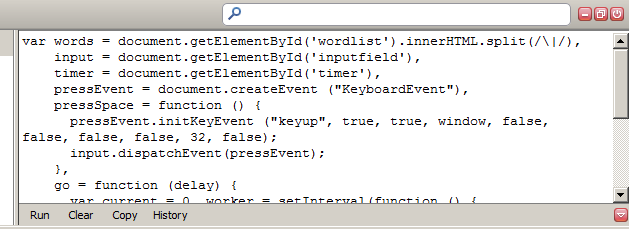
var words = document.getElementById('wordlist').innerHTML.split(/\|/),
    input = document.getElementById('inputfield'),
    pressEvent = document.createEvent("KeyboardEvent"),
    pressSpace = function () {
        pressEvent.initKeyEvent("keyup", true, true, window, false, false, false, false, 32, false);
        input.dispatchEvent(pressEvent);
    },
    go = function () {
        var i = 0,  j = words.length;
        for (; i < j; ++i) {
            input.value += words[i];
            pressSpace();
        }
    };

go();

This script is not very entertaining since it finishes the test almost instantly because it's using a for loop to go through the words.

Putting a delay

var words = document.getElementById('wordlist').innerHTML.split(/\|/),
    input = document.getElementById('inputfield'),
    timer = document.getElementById('timer'),
    pressEvent = document.createEvent("KeyboardEvent"),
    pressSpace = function () {
        pressEvent.initKeyEvent("keyup", true, true, window, false, false, false, false, 32, false);
        input.dispatchEvent(pressEvent);
    },
    go = function (delay) {
        var current = 0,
            worker = setInterval(function () {
                if (current == words.length || timer.className) {
                    clearInterval(worker);
                    return;
                }
                input.value += words[current++];
                pressSpace();
            }, delay);
    };

go(60000 / words.length);

This is a very slightly modified version of the first script which inserts a delay between each word that's "typed in". The delay, in milliseconds, is specified as an argument to the go function.

Running the scripts

To run the scripts, open Firefox, head over to to http://speedtest.10-fast-fingers.com/, launch Firebug and paste the script in the console.


Now press CTRL+ENTER and watch the magic happen.

Wednesday, October 26, 2011

A Chrome extension for plotting graphs with Wolfram|Alpha

This weekend I got round to writing a Google Chrome extension that aids you in plotting graphs from Wolfram|Alpha. The extension simply takes the parameters you input, constructs a url to Wolfram|alpha and then opens a new tab with that url.


If you wanna give it a go, I published it on the Chrome Web Store.

I've also put the source up at github: https://github.com/dreasgrech/wolframalpha-graphplotter

Sunday, October 9, 2011

Finding a function's inverse with Wolfram|Alpha

To check my answers when calculating the inverse of functions, I've found this handy widget from Wolfram|Alpha which does the job:


Wednesday, October 5, 2011

A Function Transformations reference sheet

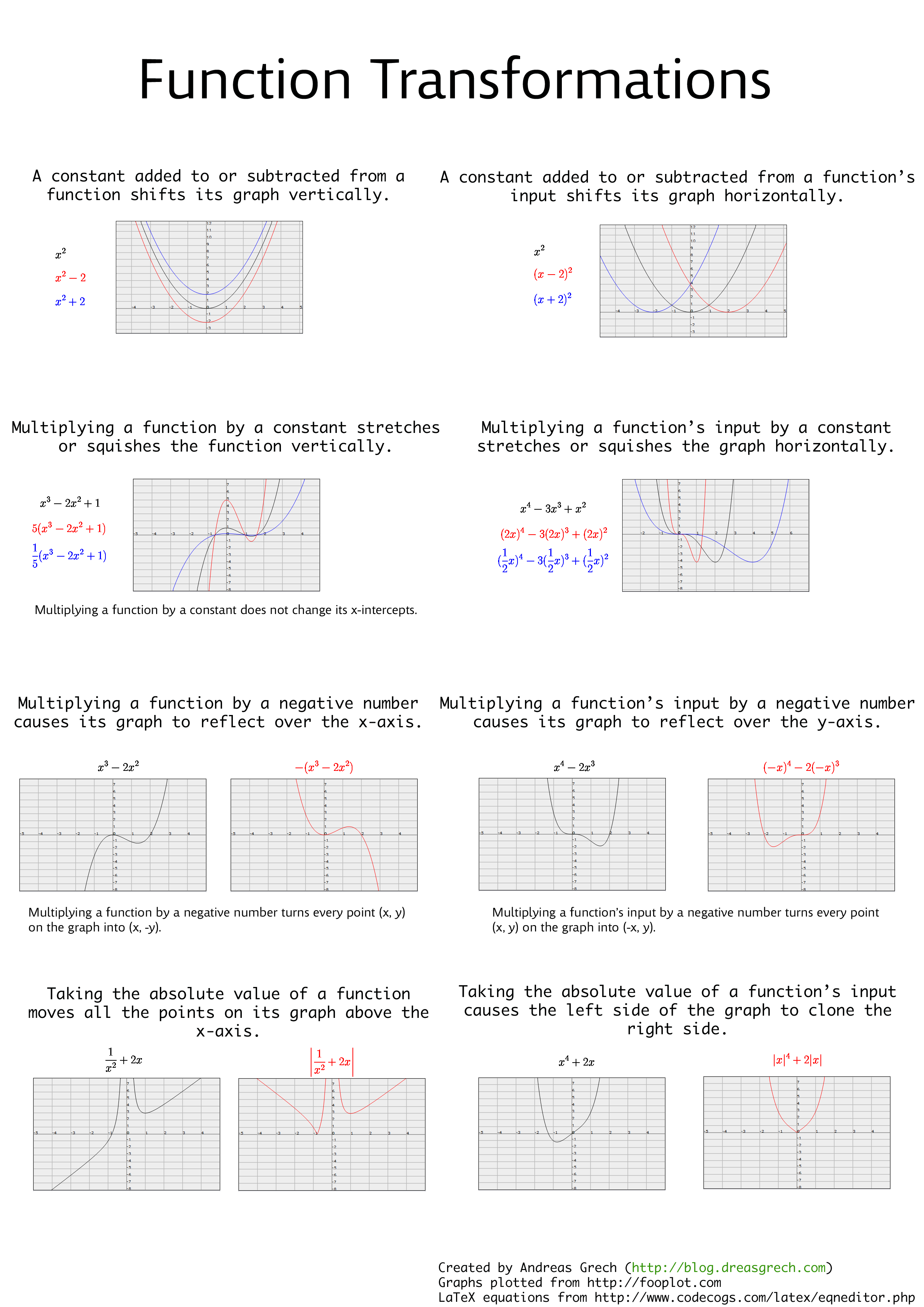
Since I never miss a change to procrastinate, I decided to spend some time compiling a "cheat sheet" for function transformations.

I've included the following 8 transformations:
  1. A constant added to or subtracted from a function shifts its graph vertically.
  2. A constant added to or subtracted from a function's input shifts its graph horizontally.
  3. Multiplying a function by a constant stretches or squishes the function vertically.
  4. Multiplying a function's input by a constant stretches or squishes the function horizontally.
  5. Multiplying a function by a negative number causes its graph to reflect over the x-axis.
  6. Multiplying a function's input by a negative number causes its graph to reflect over the y-axis.
  7. Taking the absolute value of a function moves all the points on its graph above the x-axis.
  8. Taking the absolute value of a function's input causes the left side of the graph to clone the right side.